

Did You Know Aimlabs Has a Sensitivity Converter Built In?

Just judging by the questions we see in Aimlabs chat and across various forums, it seems that a lot of players aren’t familiar with the sensitivity converter that is built directly into Settings. We’ll see players asking for calculators and converters, or asking how they can convert their sensitivity into other games… without realizing it’s just a few clicks away! So let’s break down Game Profiles once and for all so you know what they are, where to find them, and how to use them.
Why Do We Have to Convert Our Sensitivity?
First, we need to understand that, because of different game engines, math, camera, and FOV settings, the vast majority of games have their own sensitivity system, or profiles, that they use. This is why sensitivity will feel different game to game even if you use the same exact number in every game. Each of those games interprets that number completely differently. A 1.5 sensitivity in one game will feel extremely slow and sluggish, while a 1.5 in another game will feel as though you have your sens set to 150.
As a result, the gaming community developed the cm/360 system, or centimeters per 360-degree rotation, to serve as a sort of universal language of mouse sensitivity. You can read more about that HERE. The cm/360 system creates a source of truth for how your sens should feel game to game, then it’s just a matter of figuring out how that translates into each game’s unique sensitivity systems.
Enter sensitivity calculators and converters. Typically, these exist online as web-based tools for calculating your sensitivity using your cm/360 and converting it into the respective game’s systems.
Now that we’ve got that preamble out of the way, let’s talk about Game Profiles.
What Are Game Profiles?
Aimlabs actually has this tool built right into the game, through the settings menu, in the form of Game Profiles. These are each game’s unique mouse sensitivity profile, right inside of Aimlabs, and it handles the calculation for you. Similar to how you would select the game you’re starting from on an online calculator, you would do the same on Aimlabs.
You can also use this to convert your sensitivity into other games by changing the Game Profile again. This can be especially helpful if you’ve been experimenting and tweaking your sensitivity in Aimlabs, or if you’ve been using the Sens Finder, and you want to bring that back into your original game or a new game that you’re playing.
Alright, How Does It Work?
It’s pretty easy, and it only takes a few quick steps. First, find your starting sensitivity. Let’s say that you’re coming from VALORANT for example, you would find the mouse sensitivity that you use in VALORANT, write it down somewhere or memorize it, then head to Aimlabs.
Navigate to Settings, which you’ll find with the gear or cog icon in the top right corner, then click on the first option on the Settings list, which will be Sensitivity.
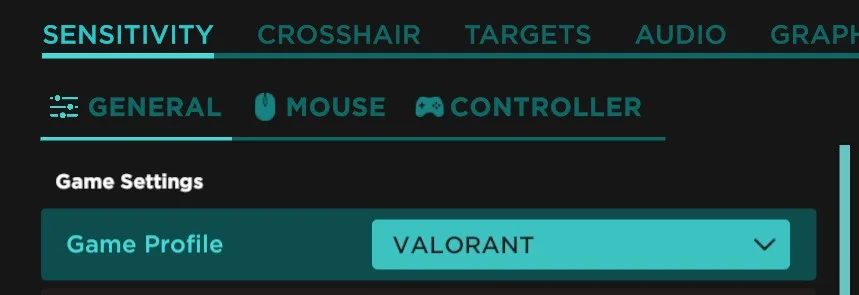
Make sure that you are on the General tab of the Sensitivity options. From here, you’ll see the Game Profile dropdown menu right at the top. This is where you would select VALORANT, or whatever game you’re looking to convert your sensitivity to or from.
Next, click the Mouse tab, it will be right next to the General tab. Here, find the Sensitivity slider, click on the number, and type in the number that you got from VALORANT or your game of choice. Then click Save at the bottom.
Boom, you’re done.
It’s that easy. Aimlabs just uses the sensitivity profile of whatever game you have selected as your Game Profile, so you can match your sens to the game that you’re training for.
Do you want to convert your sensitivity to another game? It’s as simple as navigating back to that Game Profile dropdown menu, choosing the other game you want to convert your sensitivity into, selecting it, then checking the Mouse tab again and seeing the new number, which you would then copy into that new game.
If you’ve been using the Sens Finder and you want to bring your new sens into another game, it’s the same process. Make sure you have the appropriate Game Profile selected, find the number from the Mouse tab, and copy that new number into your game.
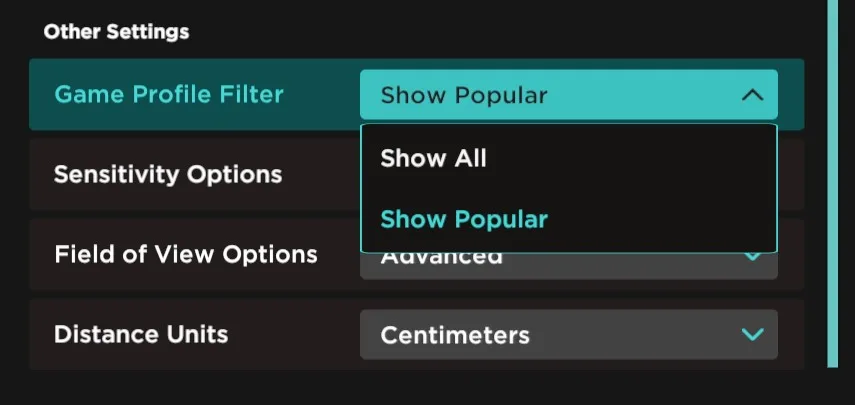
If you’re not seeing your game of choice, scroll down on the General tab and locate the Game Profile Filter. From here, you can choose Show All or Show Popular. Popular is just going to show you the most common Game Profiles that Aimlabs players select, but Aimlabs actually has hundreds of Game Profiles available, so chances are, we’ve got it already.
Things like this can seem extremely complicated or confusing, so we just build it right into Settings to make it as easy as possible. If you’ve got any questions, or there’s a game that you’d like to see added, just let us know at support.aimlabs.com, and we’ll take a look!