
How to Screenshot and Share Your Aimlabs Official Benchmarks Progress

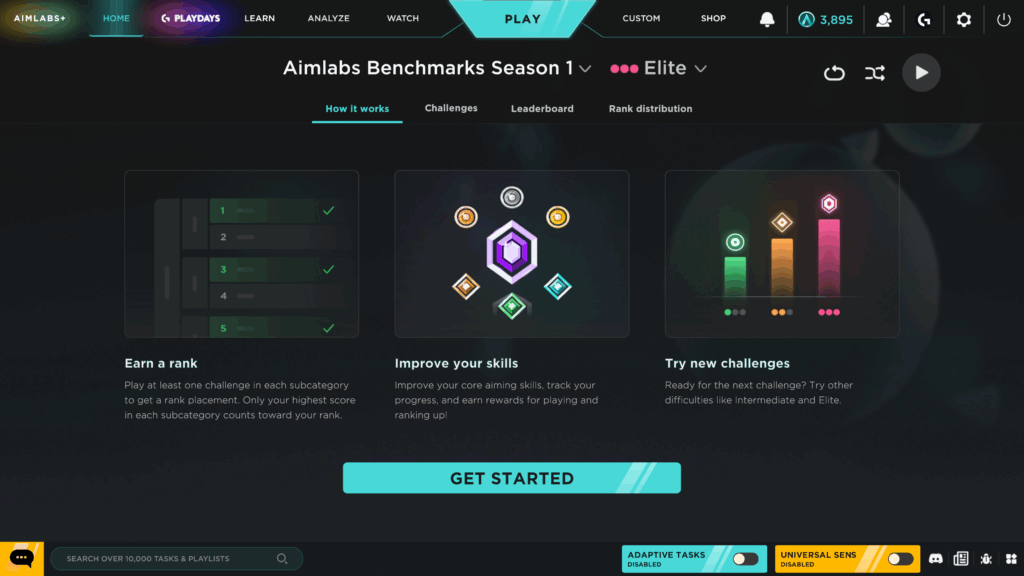
The Aimlabs Official Benchmarks give you one of the clearest pictures available of where your aim actually stands. Across three categories, Tap, Track, and Switch, the system measures your performance against a defined set of tasks and translates that into a rank that reflects your real mechanical profile. The more you engage with it, the more useful it becomes as a training tool.
The most valuable thing the Benchmarks can do for you, beyond telling you your rank, is showing you exactly where your aim needs the most work. Your subcategory scores make it clear which areas are dragging your overall skill points down. Once you know where the gaps are, you have a clear direction for your training. Find tasks and playlists in Aimlabs that target those specific mechanics, put in focused sessions, and then come back to the Benchmarks periodically to measure whether the work is moving the needle. That loop of assess, train, and reassess is what makes the Benchmarks more than just a ranking system.
Sharing your progress is a big part of that process, too. Whether you want feedback from the community, a second opinion on what to prioritize, or just a record of where you started, having a shareable snapshot of your Benchmarks screen makes it easy. Here is how to get that screenshot and share it wherever you want.
How to Share Your Benchmarks Progress
PC
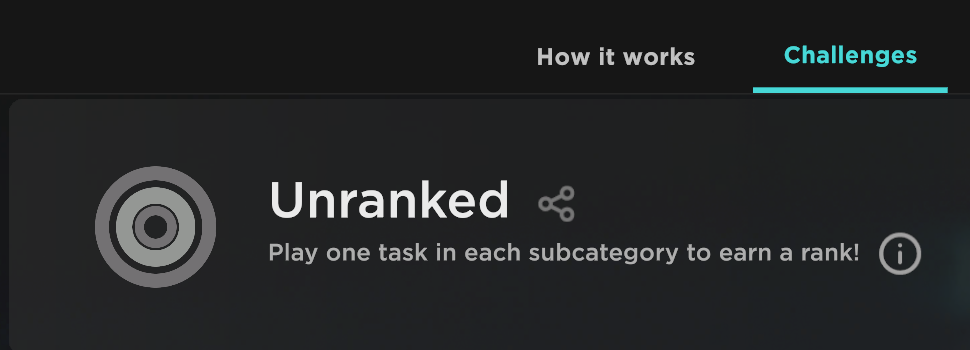
Getting your Benchmarks screenshot on PC is straightforward. In the Benchmarks section, on the Challenges tab, look for the small share icon sitting directly to the right of your rank name. Clicking it brings up a full detailed view of your scores across all tasks and subcategories. From there you will see two options in the top right corner of the screen.
Clicking Copy Image copies a clean, shareable version of your full score card directly to your clipboard, including your username, rank, overall skill points, and individual task scores. You can paste it anywhere that accepts images, including Discord, directly into a Reddit post, or any messaging app.
Clicking Open Discord will bring up an invite to the Aimlabs Discord, where you can share your progress and connect with the community directly.
Xbox Series X/S
On Xbox, the share screen will display your full Benchmarks score card with your Gamertag and rank visible. The Copy Image and Open Discord buttons are not available on console, so you will need to use your controller’s Share button to capture the screen and then move it to your phone or PC to share it elsewhere.
Taking the screenshot:
- With the Benchmarks share screen open, press the Share button on your Xbox controller once. It is the small button in the center of the controller below the Xbox button and looks like a rectangle with an arrow pointing upward.
- A notification will appear confirming the screenshot was captured and that it is uploading to the Xbox network.
Getting it to your phone:
- Download the Xbox app on your iOS or Android device and sign in with the same Microsoft account you use on your console.
- Tap the Library icon in the app. Your screenshot should appear automatically once it has finished uploading, which typically takes a few seconds to a couple of minutes.
- Open the screenshot and tap the download or share icon to save it to your camera roll or share it directly to any app on your phone.
PlayStation 5
On PS5, the share screen will show your Aimlabs profile picture, username, and full score card. As with Xbox, the Copy Image button is not available, so you will need to use the DualSense Create button to capture the screen.
Taking the screenshot:
- With the Benchmarks share screen open, press the Create button on your DualSense controller. It is the small button to the left of the touchpad.
- Select Take Screenshot from the Create menu that appears.
Getting it to your phone:
- Download the PlayStation App on your iOS or Android device and sign in with your PSN account.
- If you have not already, enable Auto-Upload by opening the Media Gallery on your PS5 and selecting Enable Auto Upload when prompted. This allows your screenshots to sync automatically to the app.
- In the PlayStation App, tap Game Library and then Captures. Your screenshot will appear there once it has uploaded, typically within a few minutes.
- Open the screenshot and download it to your camera roll or share it directly from the app.
Sharing it on Reddit
If you want to reply to an existing Reddit thread with your Benchmarks screenshot rather than creating a new post, Reddit does not support direct image uploads in comments. You will need to host the image on a third-party service first and then link it in your reply.
The easiest option right now is Imgbb at imgbb.com. It is free, requires no account, and generates a shareable link in seconds.
- Go to imgbb.com on your phone or PC.
- Tap Start Uploading and select your Benchmarks screenshot.
- Once uploaded, copy the Direct Link provided.
- Paste the link into your Reddit comment.
If you are creating a new post rather than replying to an existing thread, Reddit’s native image upload handles it directly without needing a third-party service.
Where to Share
The best places to share your Benchmarks progress and get useful feedback are the Aimlabs Discord and the Aimlabs subreddit. Both communities have players at every level and are generally good about offering constructive advice on where to focus your training.
Keep an eye out for our monthly Benchmarks Monday on the Aimlabs subreddit, where we invite players to share their progress, compare scores, and help each other identify what to work on next. It is a good opportunity to get direct feedback from the community and track your improvement over time.